Lab Five
Microsoft Excel - 1
Preliminaries
This lab will demonstrate the use of a spreadsheet to solve a real problem.
The diskettes must be formatted on the MAC for DOS.
Goals
-
Using Microsoft Excel
-
Translate a word problem to an Excel Spreadsheet
We will be entering information into a spreadsheet and writing some simple
formulas to operate on the data. This will be used as a basis for Lab 6
for learning to write more sophisticated formulas, absolute/relative addressing,
and to do "whatif" analysis.
To Do
1. Start Microsoft Excel
(As described in class)
2. How choose which car to purchased?
Your "old faithful" has just died its final death and you must purchase
a replacement. Your prelimiary research has narrowed the field down to
three choices:
Saturn This car has a purchase price of $18,575. Saturn is
offering
a 4-year loan. To amoratize the loan, this requires a monthly payment of
$479.15. The cost of insurance is $1215.00 per year.
Toyota Rav This car has a purchase price of $19,999. Toyota is
offering a 4-year loan. To amoratize the loan, this requires a monthly
payment of $489.89. The insurance cost wil be $980 per year.
Ford Escape This car has a purchase price of $18,700. Ford is
offering a 4-year loan. To amoratize the loan, this requires a monthly
payment of $471.22. The insurance cost wil be $990 per year.
In this lab, you are going to compare the 3 cars in terms of the total
cost of the car with interest and the cost of insurance. In the next lab,
we are going to consider the cost of fuel and repairs over the four years
of ownership.
In the spreadsheet, make sure all of your columns are wide enough to
accommodate the column widths.
-
Create a spreadsheet to compare the cost over four years of these three
vehicles. The vehicles should be in the columns and the expenses in the
rows.
-
Your name should appear in the first row and first column of the work sheet.
The font size of our name should be 12.
-

-
Make up a title for your spreadsheet. It should appear in bold in row 2
column A of the spreadsheet. It should have a font size of 20 and should
be in bold.
-
Column C will contain data for the Saturn.
-
Column D will contain data for the Toyota.
-
Column E will contain data for the Ford.
-
You are going to leave seven rows blank that will be used in next week's
lab.
-
Row 10 Columns C, D, E should contain a label Saturn, Toyota, Ford, respectively.
-
Row 11 Column A should contain the label Purchase Price. Columns C-E should
contain the appropriate data.
-
Row 12 Column A should contain the label Monthly Payment. Columns C-E should
contain the appropriate data.
-
Row 13 Column A should contain the label Yearly Insurance. Columns C-E
should contain the appropriate data.
-
Row 14 Column A should contain the label Purchase Price + Intrest. You
must write a formula for Column C to calculate the purchase price plus
interest.
-
Row 15 Column A should contain the label Total Inusrance. You must write
a formula for Column C to calculate the cost of insurance over 4 years
for the Saturn.
-
Row 16 Column A should contain the label Total cost. You must write a formula
for column C to calculate the total cost of purchase, interest, and insurance
for the saturn over 4 years.
-
You should now highlight the formulas placed in Rows 15-16 Column C and
drag as instructed into Columns D and E. You must not reenter formulas
for the Toyota and Ford.
-
Row 17 Column G (not Column A) should contain the label Least Expensive.
Column F should contain a formula for obtaining the minimum of Row 16 column's
C-E.
-
Row 18 Column G (not Column A) should contain the label Most Expensive.
Column F should contain a formula for obtaining the maximum of Row 16 column's
C-E.
3.Save your data to diskette. You must save the file on both diskettes.
4.Print outs
You are going to submit two different types of print outs.
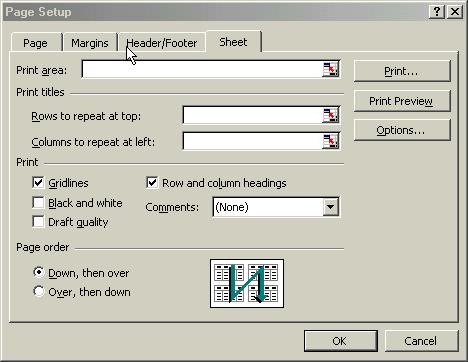
In both printouts, the page must be set up properly. You are to show
row and column headings as well as grid lines. To do this, click file,
page setup, sheet tab, check gridlines and row and column headings .
The first is easy, simply print your document by selecting file, print.
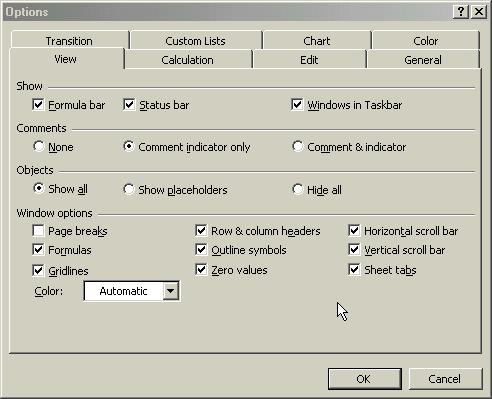
The second printout, will show the formulas that you created.
To do this, click on Tools, Options, Windows Options tab, check formulas
box. Print the document showing the formulas. You can restore the normal
display by repeating the process exceptyou will uncheck formulas.
5. Hand In
Hand in the two print outs as described above.
[CS 115 Home Page][CS
115 Lab Page]
Maintained by Barbara Bracken
Last Modified 11/17/2003